> ## Documentation Index
> Fetch the complete documentation index at: https://docs.athina.ai/llms.txt
> Use this file to discover all available pages before exploring further.
# Configure an Annotation Project
> Learn how to set up and configure an annotation project in Athina AI.
Athina AI enables you to launch fully managed annotation projects to collect high-quality labeled data. This guide walks through the full setup process—from project creation to annotator assignment.
***
## Step 1: Create a Project
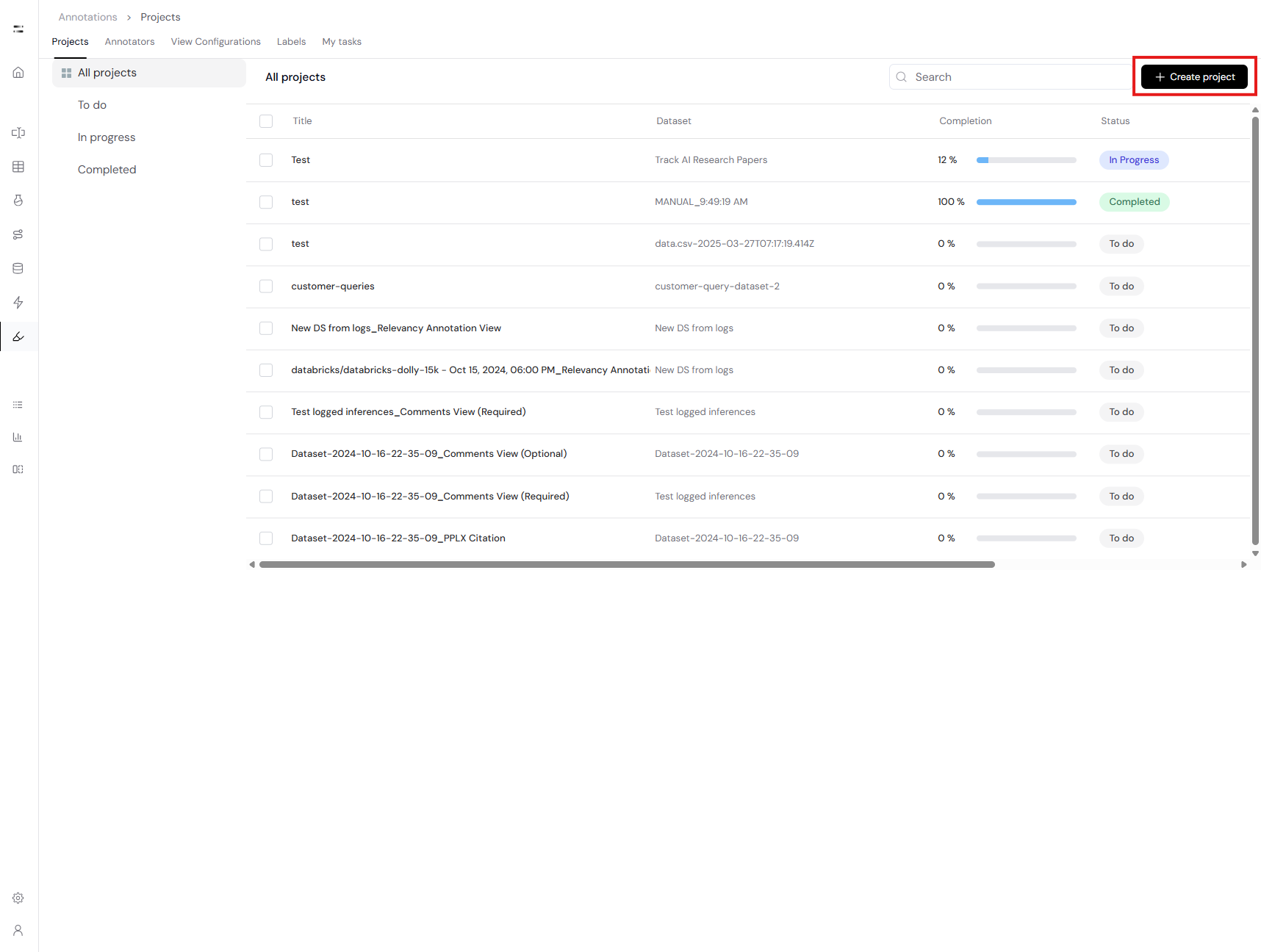
Navigate to the **Annotations** page and click the **+ Create project** button at the top right.
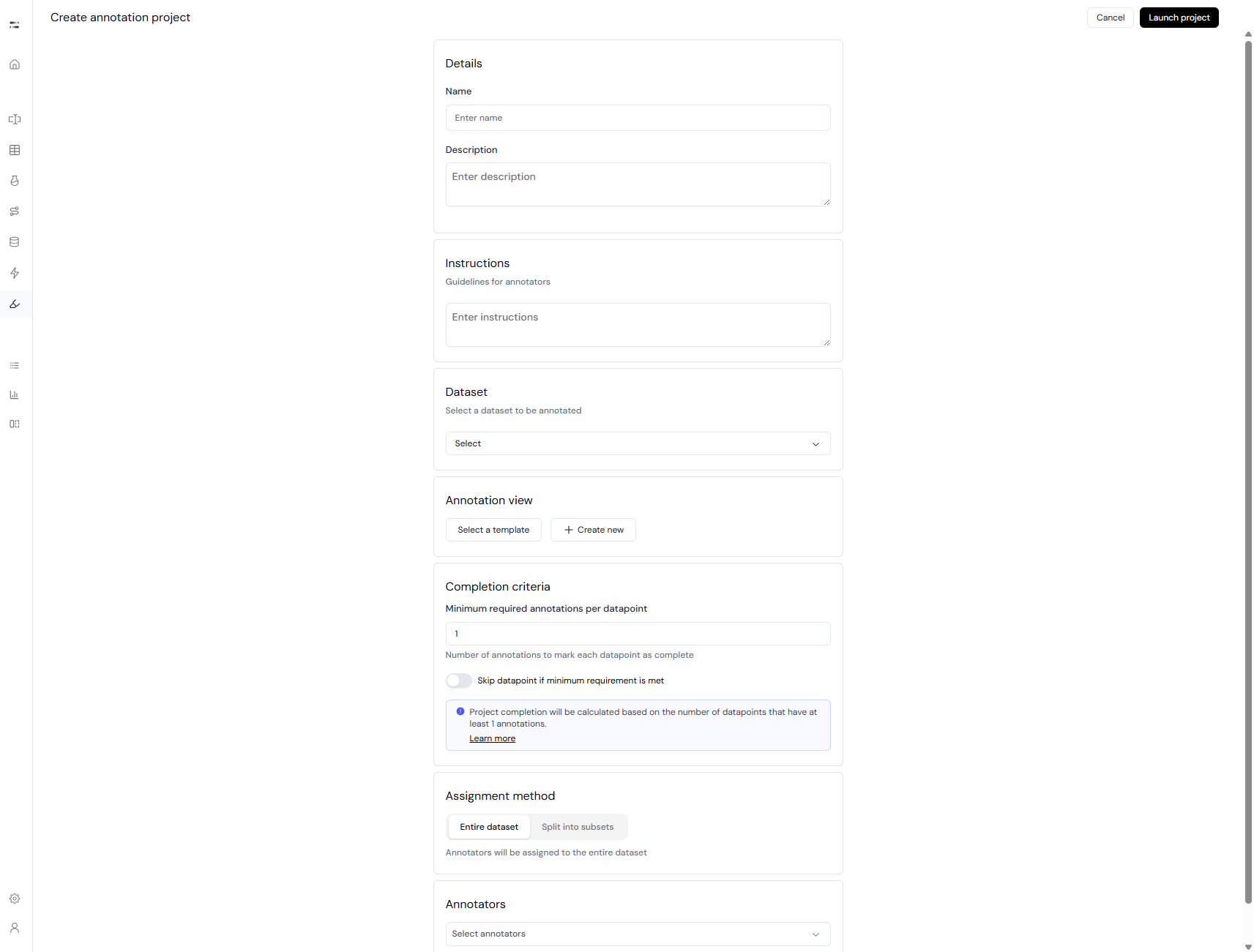
On the creation page, fill in the required project information:
* **Name** – Internal name of your annotation project.
* **Description** – Optional. Helps team members understand the scope.
* **Instructions** – Optional guidelines shown to annotators for consistent labeling.
***
## Step 2: Select Dataset
Choose a dataset from the dropdown.\
Currently, only existing datasets can be selected.
* Supported file formats for datasets: `.jsonl`, `.json`, and `.csv`
* If needed, upload the dataset from the [Datasets](/datasets/overview) page beforehand.
***
## Step 3: Define Annotation View
Annotation View determines what annotators see and how they interact with the data.
* You can **select a template** (predefined configuration) or **create a new view**.
* Define:
* **Which fields** are visible (e.g., input, output, metadata).
* Whether fields are **editable**, **required**, or **markdown-enabled**.
* **Labels** to be collected (e.g., category, number, comment).
> View configurations can be reused across multiple projects.
***
## Step 4: Set Completion Criteria
Define how many annotators must label each datapoint.
* **Minimum required annotations per datapoint**:\
Determines how many independent annotations are needed before a datapoint is considered complete.
* Toggle: **Skip datapoint if minimum requirement is met** – allows annotators to skip fully-labeled entries.
If you set this value to `2`, each datapoint must be labeled by 2 different annotators to be marked as complete.
***
## Step 5: Choose Assignment Method
Select how to distribute annotation workload:
* **Entire dataset** – All annotators label the full dataset.
* **Split into subsets** – Automatically or manually divide the dataset and assign different subsets to annotators.
Use subsets if you want to avoid duplicate annotation or manage workloads among many contributors.
***
## Step 6: Assign Annotators
* Search and add your team members as annotators.
* Depending on the assignment method, they will receive:
* All datapoints (entire dataset) or
* Only their subset (split mode)
***
## Step 7: Launch
When you're done configuring, click **Launch project**. Annotators will be notified and can begin labeling immediately.
***