> ## Documentation Index
> Fetch the complete documentation index at: https://docs.athina.ai/llms.txt
> Use this file to discover all available pages before exploring further.
# Search
> Search the web for information.
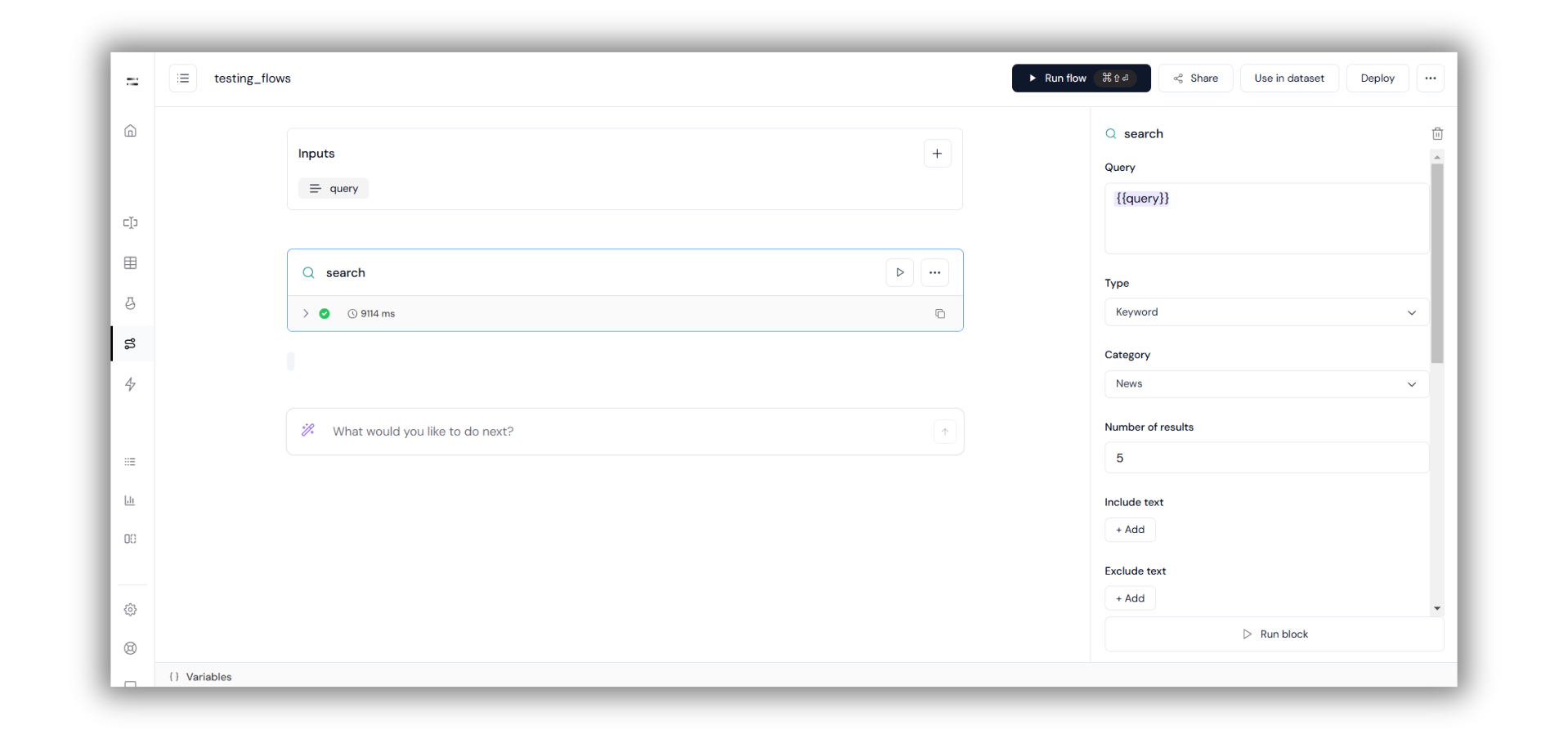
The Search Block helps you perform web searches and gather relevant data based on your queries. It allows you to customize your searches to get exactly what you need. You can search by type (e.g., auto, keywords), filter by categories, and refine results using dates or specific websites. This makes the Search Block a flexible tool for many tasks, like finding news, filtering content, or doing targeted research.
 ## Steps to Run Search Block
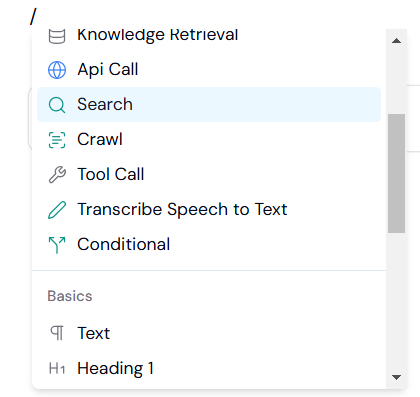
Inside the Flow Builder, type a forward slash `(/)` to bring up the block menu.
From this menu, select **'Search'** block.
## Steps to Run Search Block
Inside the Flow Builder, type a forward slash `(/)` to bring up the block menu.
From this menu, select **'Search'** block.
 Enter your query into the **Input** section as shown here.
 Configure your settings in the right-hand sidebar. You will see options such as:
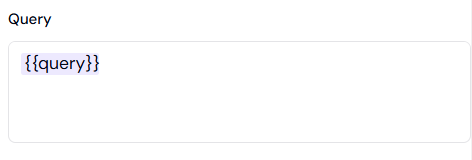
1. **Query**
* Enter your input query using dynamic inputs like `{{query}}` to get results related to your input.
Configure your settings in the right-hand sidebar. You will see options such as:
1. **Query**
* Enter your input query using dynamic inputs like `{{query}}` to get results related to your input.
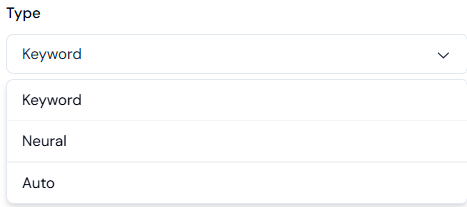
 2. **Type**
* Choose between different search methods, such as **Auto** ,**Keywords**, or **Neural**.
2. **Type**
* Choose between different search methods, such as **Auto** ,**Keywords**, or **Neural**.
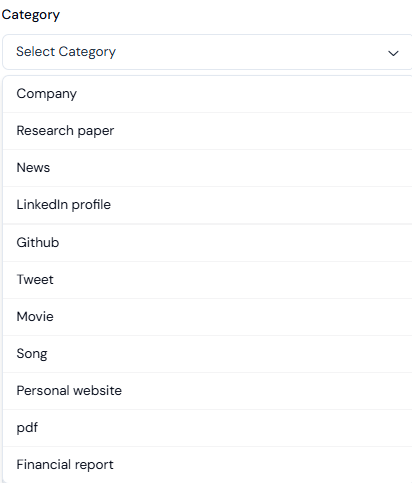
 3. **Category**
* Refine your search results by selecting a specific category, like **News**, **Twitter**, etc.
3. **Category**
* Refine your search results by selecting a specific category, like **News**, **Twitter**, etc.
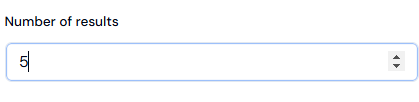
 4. **Number of Results**
* Define the maximum number of results you want to retrieve.
4. **Number of Results**
* Define the maximum number of results you want to retrieve.
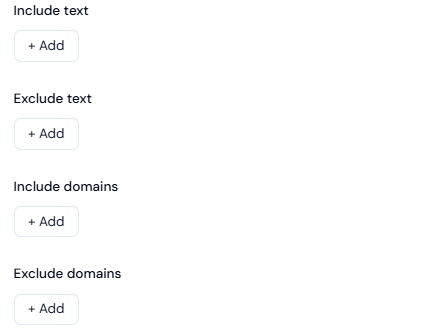
 5. **Include/Exclude Filters**
* Add specific words or phrases to include or exclude in your search results. You can also filter by domains.
5. **Include/Exclude Filters**
* Add specific words or phrases to include or exclude in your search results. You can also filter by domains.
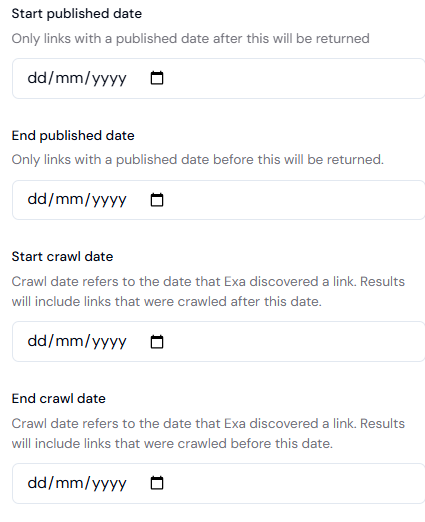
 6. **Date Filters**
* **Start Published Date**: Only retrieve results published after a certain date.
* **End Published Date**: Only retrieve results published before a certain date.
* **Start Crawl Date**: Retrieve results crawled after a specific date.
* **End Crawl Date**: Retrieve results crawled before a specific date.
6. **Date Filters**
* **Start Published Date**: Only retrieve results published after a certain date.
* **End Published Date**: Only retrieve results published before a certain date.
* **Start Crawl Date**: Retrieve results crawled after a specific date.
* **End Crawl Date**: Retrieve results crawled before a specific date.
 * Click on **'Run Block'** in the right-hand sidebar to execute the Search Block. The results will appear based on your defined query and settings.
 Follow these steps to easily set up and use the Search Block. Check your query and settings to make
sure you're getting the most accurate results. Adjust configurations as needed.
Follow these steps to easily set up and use the Search Block. Check your query and settings to make
sure you're getting the most accurate results. Adjust configurations as needed.