> ## Documentation Index
> Fetch the complete documentation index at: https://docs.athina.ai/llms.txt
> Use this file to discover all available pages before exploring further.
# Different stages of evaluation
At some point in your AI product development lifecycle, you will find a need to improve performance of your model.
**For Generative AI models, improving performance is pretty difficult to do systematically because you don't have a quantitative way to measure results.**
***
#### Demo Stage: The Inspect Workflow 🔎[](#demo-stage-the-inspect-workflow-)
**Manual Inspect Worklow**
* Run prompt on single datapoint
* Inspect the response manually
* Change prompt / datapoint and repeat
Usually, people have a workflow like this during their initial prototyping phase.
*This worklow is fine to get an initial demo ready, but does not work great after this stage.*
***
#### MVP Stage: The Eyeball Workflow 👁️👁️[](#mvp-stage-the-eyeball-workflow-️️)
This workflow is similar to the previous workflow, but instead of running 1 datapoint at a time, you are running many datapoints together.
However, you still don't have ground truth data (the ideal response by the LLM) so there's nothing to compare against.
**Eyeball Worklow** - Run prompt on dataset with multiple datapoints - Put outputs onto a spreadsheet / CSV - Manually review (eyeball) the responses for each - Repeat
*This worklow is fine pre-MVP, but is not great for iteration.*
**Why doesn't this workflow work for rapid iteration?**
* Inspecting generations on a dataset is manual and time-consuming (even if the dataset is small!)
* You don't have quantitative metrics
* You have to maintain a historical record of prompts run
* You don't have a system to compare the outputs of prompt A vs prompt B
***
#### Iteration Stage: The Golden Dataset Workflow 🌟🌟[](#iteration-stage-the-golden-dataset-workflow-)
You now have a golden dataset with your datapoints, and ideal responses.
You can now set up some basic evals.
Great! Now you actually have a way to improve performance systematically.
The workflow looks something like this
**Iteration Worklow** - Create golden dataset (multiple datapoints with expected responses) - Run prompt on test dataset - Option 1: Manual Review - Put outputs onto a spreadsheet / CSV - Manually compare LLM responses against expected responses - Option 2: Evaluators - Create evaluators to compare LLM response against expected response - But what metrics to use? How to compare 2 pieces of unstructured text? - Build internal tooling to: - run these evaluators, and score them - track history of runs - a UI
*This is actually a good workflow for all stages.*
**What are the downsides of this workflow?**
* Difficult and time consuming to create good evals
* You need to create lots of internal tooling
* Does not capture data variations between your golden dataset and production data
* You have to maintain a historical record of prompts run
* Requires a mix of manual review + eval metrics
***
## ⛭ Enter the Athina Worklow\... 🪄[](#-enter-the-athina-worklow-)
Athina's workflow is designed for users at any stage of the AI product development lifecycle.
**Athina Monitor: Demo / MVP / Production Stage**
*Setup time: \< 5 mins*
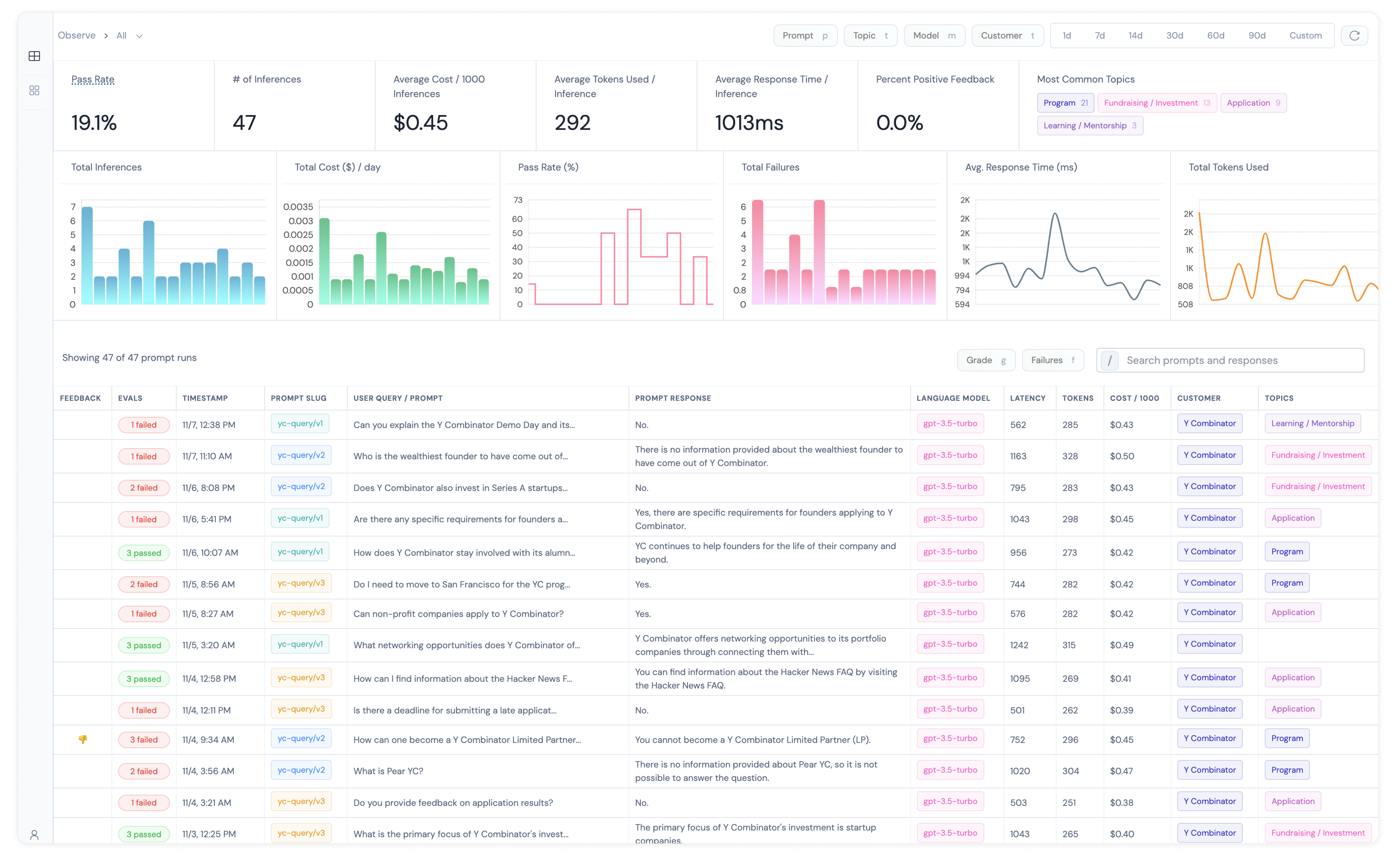
* Run your inferences, and log data to [Athina Monitor](api-reference/logging/overview).
* View the results on a dashboard.
* Preserve historical data including prompt, response, cost, token usage and latency (+ more)
* UI to manually grade your responses with 👍 / 👎
This will work for single datapoint or multiple datapoints.
**Athina Evaluate: Development / Iteration Stage**
*Setup time: 2 mins*
Now that you're really trying to focus on improving model performance, here's how you can do it:
* Configure experiments and run evaluations programmatically
* Run [preset evals](evals/preset-evals) or create your own [custom eval](/evals/custom-evals)
* Eval results are automatically logged to [Athina Develop](https://docs.athina.ai/develop/intro)
* Works in a python notebook – but you can also view the results on a dashboard.
* Also preserves historical data including prompt, response, datapoints, eval metrics (+ more)