> ## Documentation Index
> Fetch the complete documentation index at: https://docs.athina.ai/llms.txt
> Use this file to discover all available pages before exploring further.
# Prompt Versioning
> A guide on managing and tracking prompts with prompt versioning in Athina AI.
Managing and refining prompts is a crucial part of optimizing Large Language Model (LLM) interactions. As prompts evolve with iterations and improvements, it becomes essential to keep track of changes, test different versions, and revert to previous ones if needed.
Prompt versioning in Athina AI allows you to systematically manage your prompt iterations, ensuring consistency, collaboration, and ease of experimentation. This guide will walk you through the importance of prompt versioning, how it works, and its implementation using Athina’s Prompt Playground.
## Why Do We Need Prompt Versioning?
Prompt versioning is a system that automatically assigns a version number to each saved change of a **prompt template**. Managing prompts manually can become cumbersome, especially when multiple iterations are tested. Prompt versioning ensures:
* **Traceability**: You can see when and how a prompt changes.
* **Flexibility**: Easily switch between versions to compare effectiveness.
* **Collaboration**: Teams can work on the same prompt while maintaining version control.
* **Reliability**: Prevents accidental loss of a well-performing prompt by allowing easy rollbacks.
## Prompt Versioning in Athina AI
Now let’s see step by step how to version prompts:
### Step 1: Create a Prompt
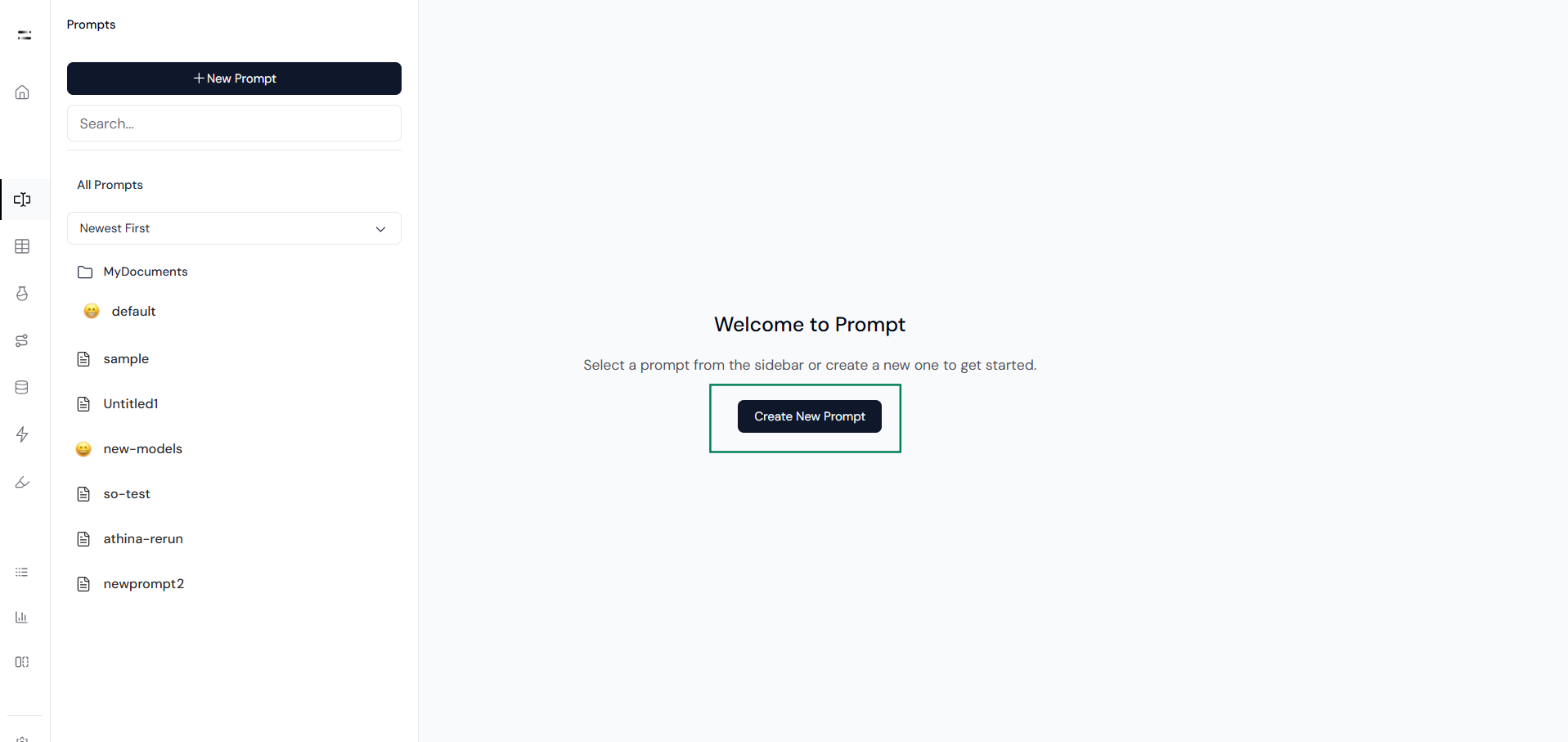
Start by opening the **Prompts** section in Athina AI and creating a new prompt.
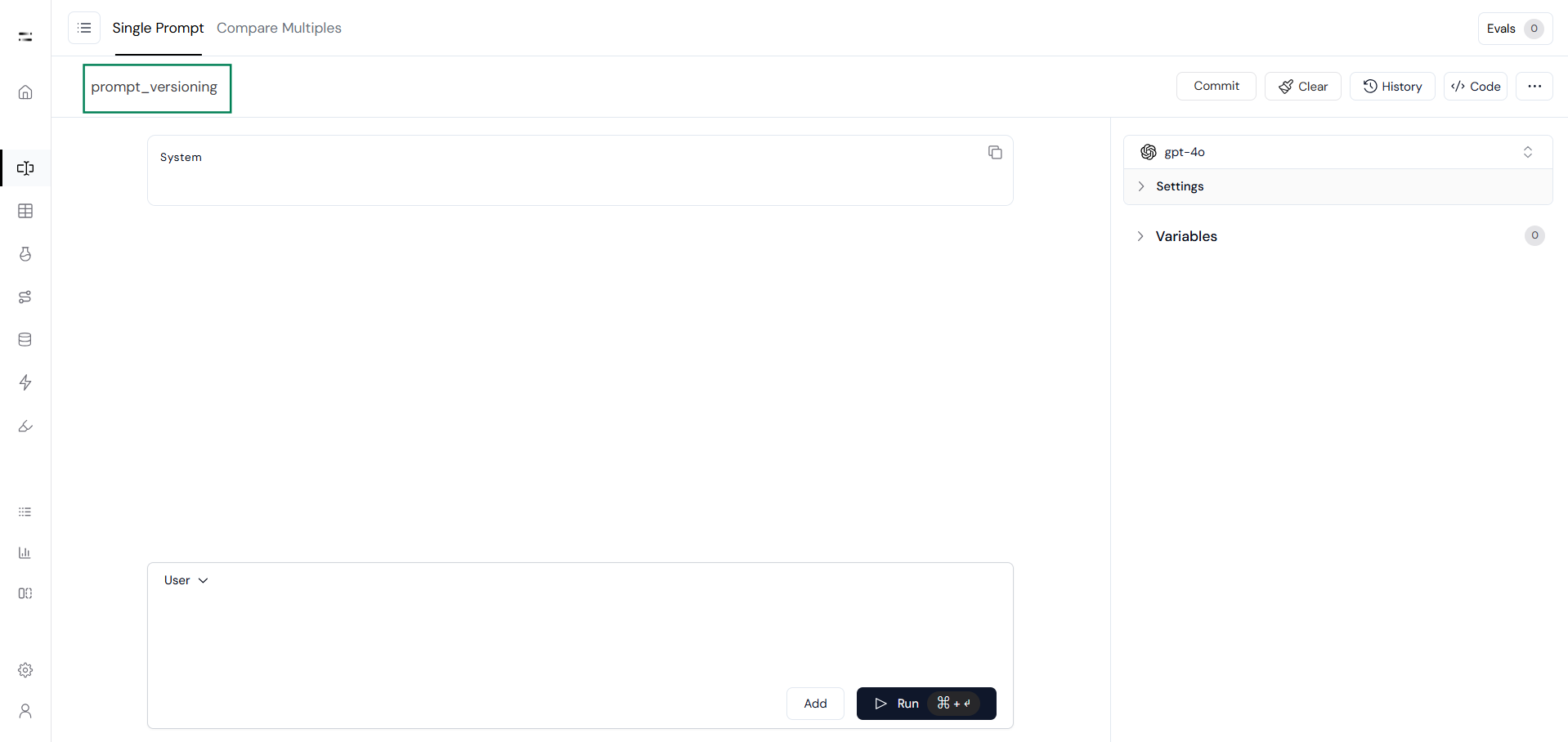
 Once the playground interface appears, rename the experiment as you can see in the following image.
 ### Step 2: Test the Prompt
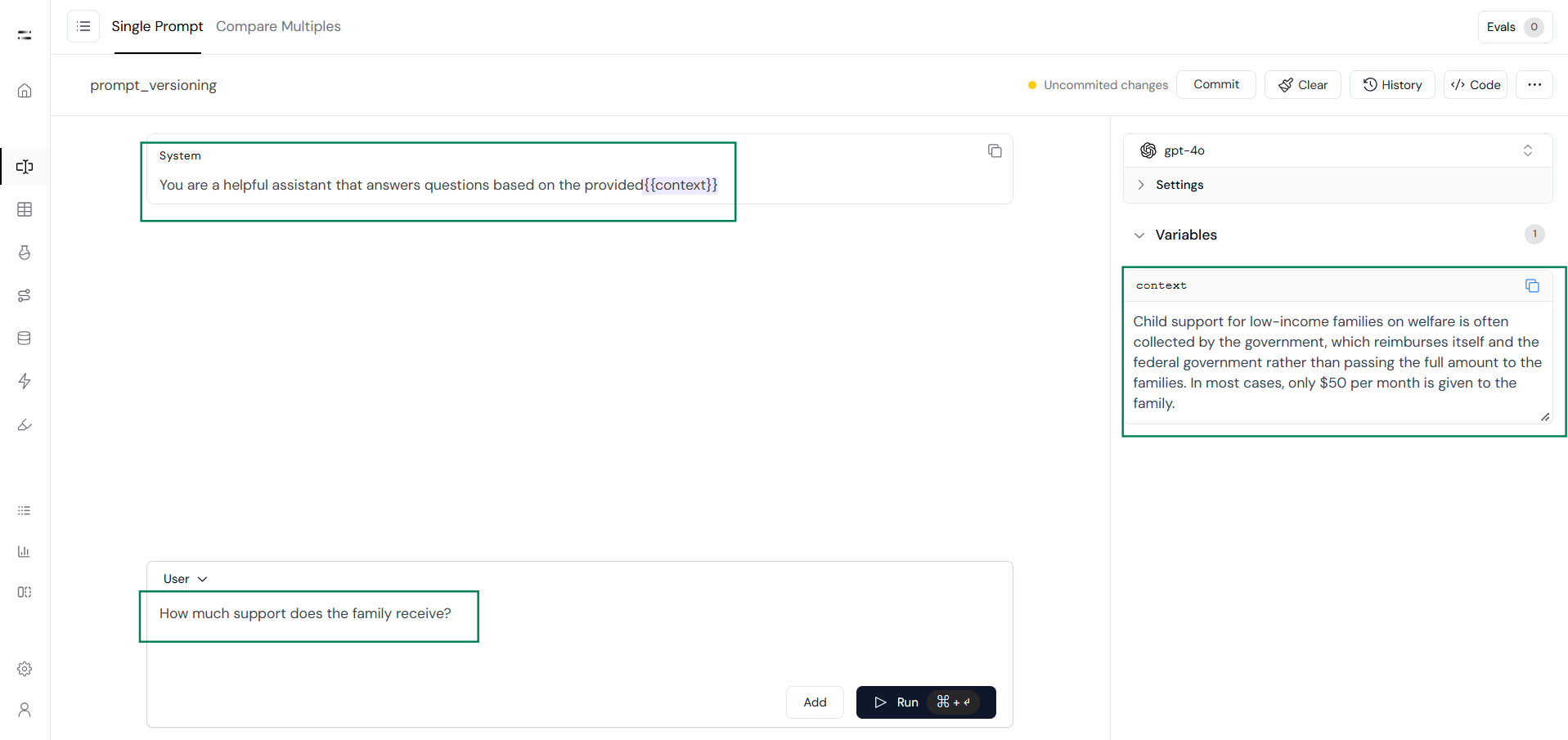
Add your system prompt in the **System** field, then define the context in the **Variables** section on the right-hand side. After that, enter your query in the **User** section and review the response.
### Step 2: Test the Prompt
Add your system prompt in the **System** field, then define the context in the **Variables** section on the right-hand side. After that, enter your query in the **User** section and review the response.
 ### Step 3: Commit a Prompt Version
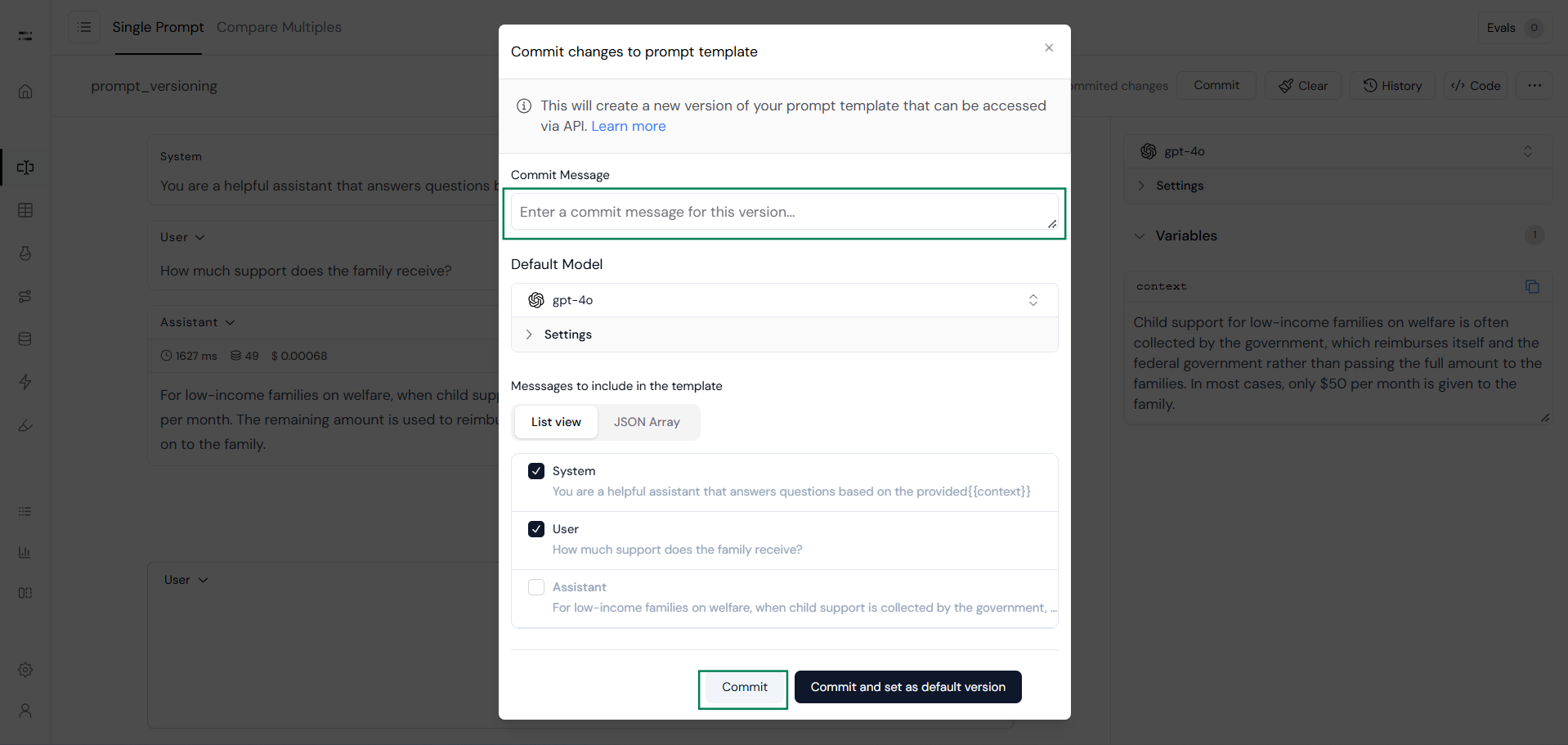
Once you are satisfied with the prompt’s response, click on the **Commit** button.
### Step 3: Commit a Prompt Version
Once you are satisfied with the prompt’s response, click on the **Commit** button.
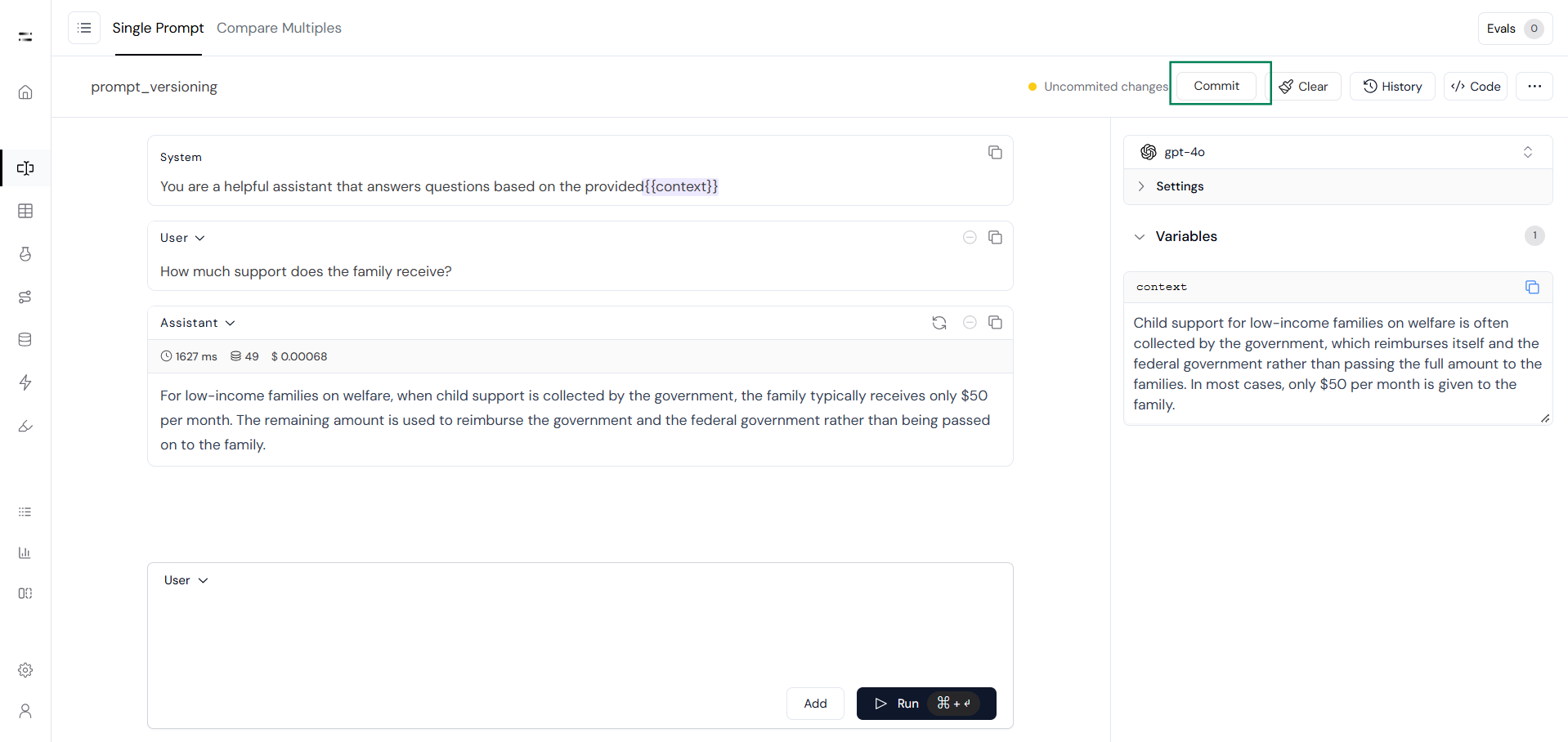 Then add a commit message and click **Save Commit** to finalize the version.
 You can see your prompt version next to the name and also in the commit history as you can see below.
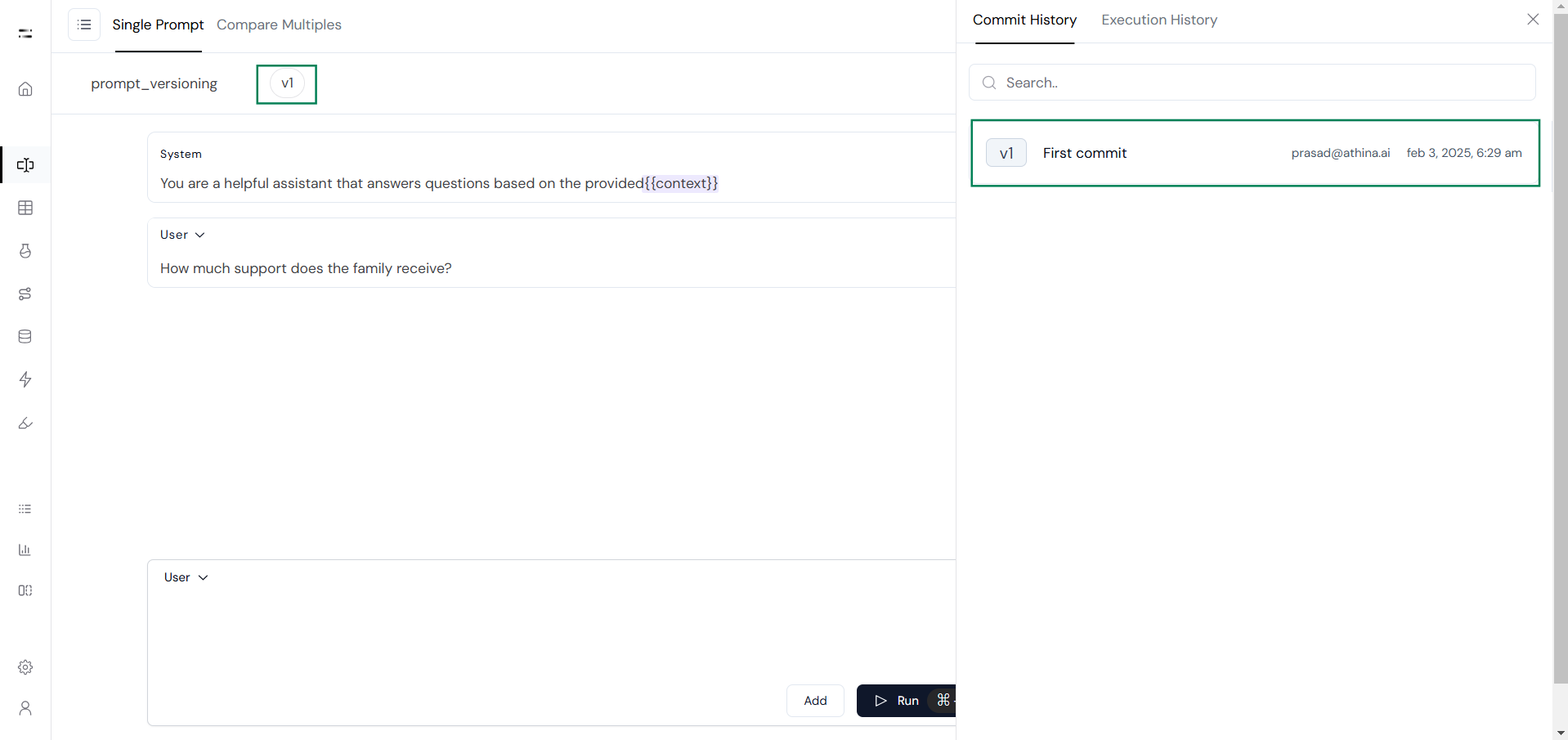 Prompt versioning in Athina AI provides a structured way to manage, track, and optimize prompts over time. By maintaining version history, users can experiment, revert to previous versions when needed, and collaborate seamlessly with their teams. With version tracking, default version settings, and rollback capabilities, they can confidently iterate on prompts while ensuring that well-performing versions are preserved and easily accessible.